Export and send your films
Render every format in every language on your Mac, record the approval, and send the right files: BrickNote keeps track of which ones are current.
Choose what to export
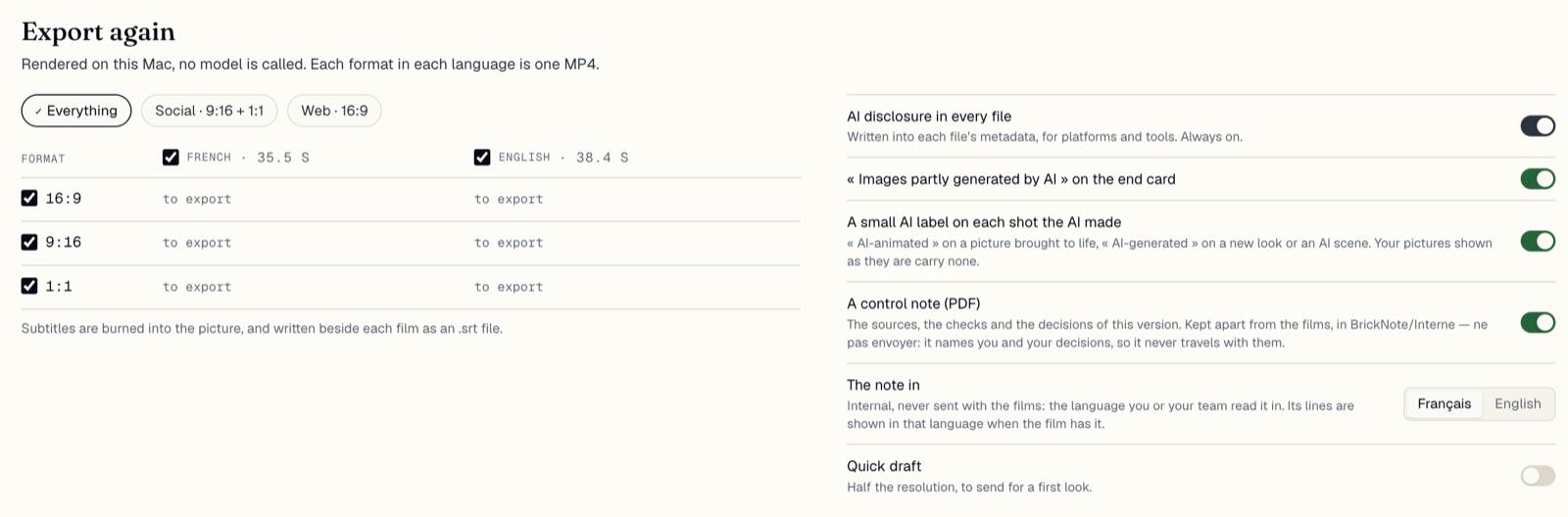
In the studio, click Export. Pick Everything, Social · 9:16 + 1:1 or Web · 16:9, or tick formats and languages in the table. Each format in each language is one MP4, with its .srt subtitle file.
On the right, AI disclosure in every file is always on: it is written into each file’s metadata. « Images partly generated by AI » on the end card is on by default. A small AI label on each shot the AI made is on by default in a Faithful film and off in a Creative one. A control note (PDF) adds the note, and The note in picks its language, Français or English. Quick draft renders at half the resolution, for a first look: a review draft. Its folder’s name ends “— draft”, its players say Review draft, and it is never a current file to send.
Export
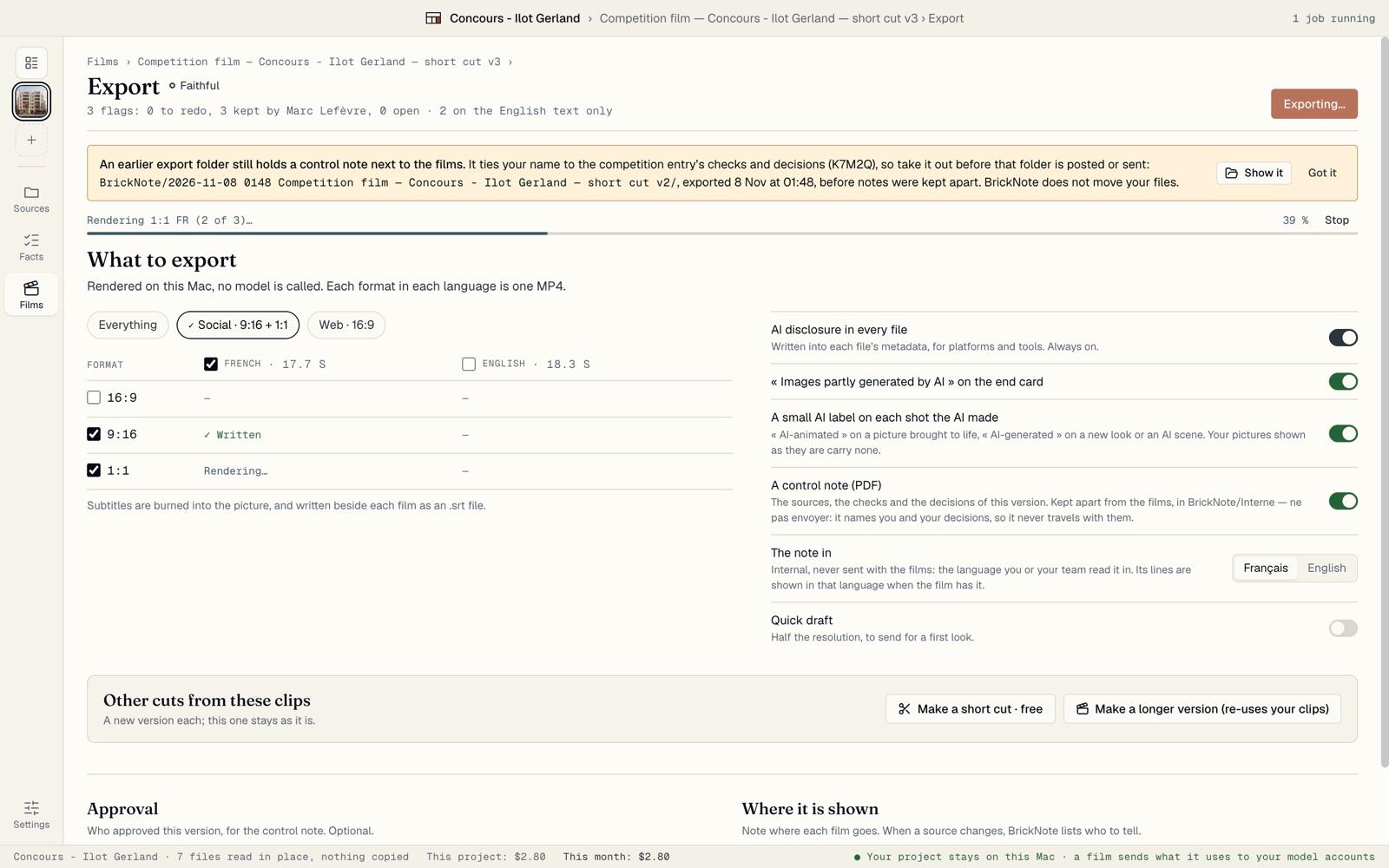
Click the export button. It says what it makes, such as Export 2 films + note. BrickNote renders on your Mac: no model is called and nothing is paid. Each cell turns to ✓ Written as its file is done, and Stop stops the render.
If a shot has no picture yet, the export stops and names it rather than leave a black gap.
Watch and share the films
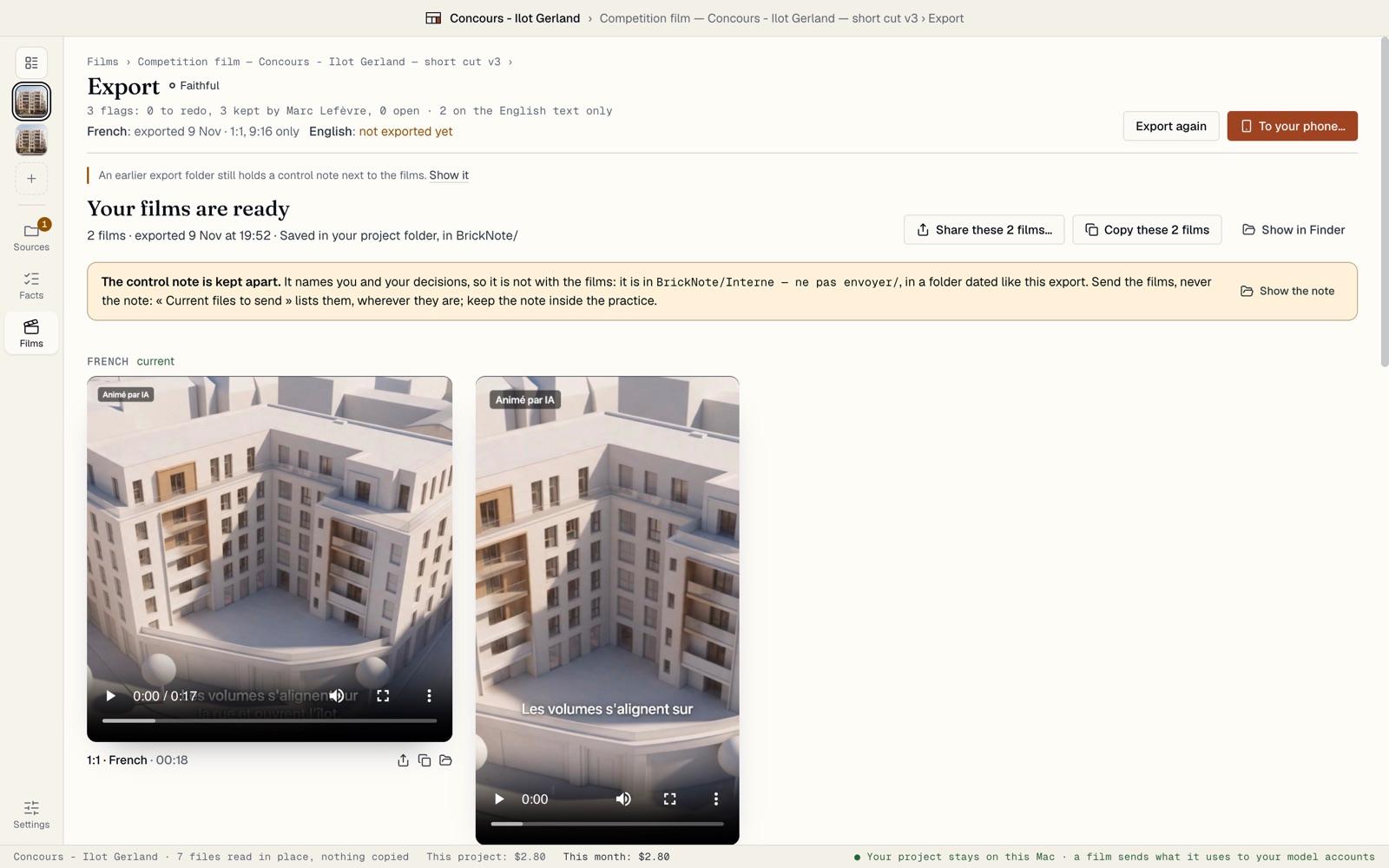
Your films are ready shows each film as a player. They are saved in your project folder, under BrickNote, in a folder dated like the export.
The buttons at the top act on the current files to send, wherever they are: Share these 2 films… and Copy these 2 films when they are the films shown, Share the current files… and Copy the current files when some are in another export’s folder. Share opens the macOS share menu (AirDrop, Mail, Messages); Copy puts the files on the clipboard, to paste in Mail, Slack or a Finder window. When the film changed since its export, no file is current: BrickNote says so instead of sharing the old one. Show in Finder opens the folder. Each player has the same buttons for its own file.
The control note is for you and your team: never send it with the films.
Record the approval
Under Approval, type the name and role of whoever approved this version, then click Record approval. The approval goes into the control note, with its time.
If the film changes afterwards, BrickNote says it was approved before these changes and offers Approve again.
Under Where it is shown, note where each file goes, such as the programme’s website: pick one of the current files, named by its language, format and export date. When that place shows a newer film, click Updated with… and pick it: the entry keeps that export’s date. When a source changes, BrickNote lists who to tell.

Send the current files
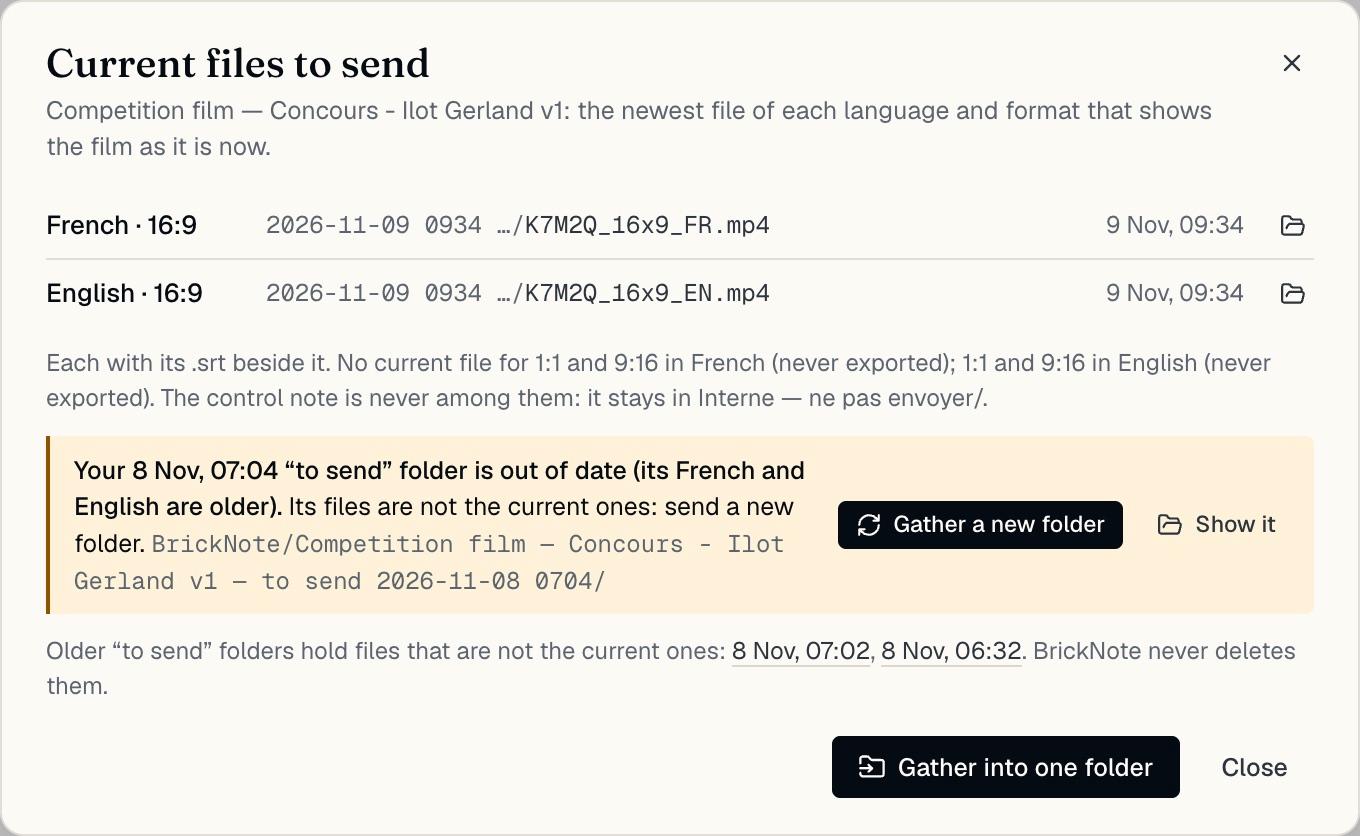
Current files to send, on the Export page and behind Files to send on the film’s card, lists the newest file of each language and format that shows the film as it is now, wherever it is. It also says which ones have no current file.
Gather into one folder copies those films and their .srt files into a new “to send” folder. It never copies the control note, and it never moves or deletes anything. If that folder goes out of date after a new export, BrickNote says so and offers Gather a new folder.
Watch it on your phone
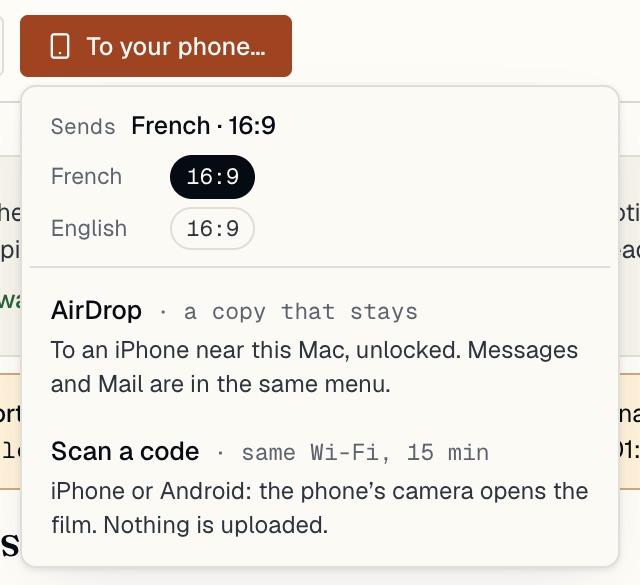
To your phone… says which file it sends, such as “French · 9:16”: by default the vertical film in the first language, among the current files to send. With several, pick another at the top of the menu. Then choose a way. AirDrop sends a copy to an iPhone near this Mac. Scan a code shows a QR code: an iPhone or an Android phone on the same Wi-Fi opens the film for 15 minutes. Nothing is uploaded; the film is served from your Mac.
The first time, macOS may ask whether BrickNote may accept incoming connections. Allow it, or the phone cannot reach the film.
See what changed since an export
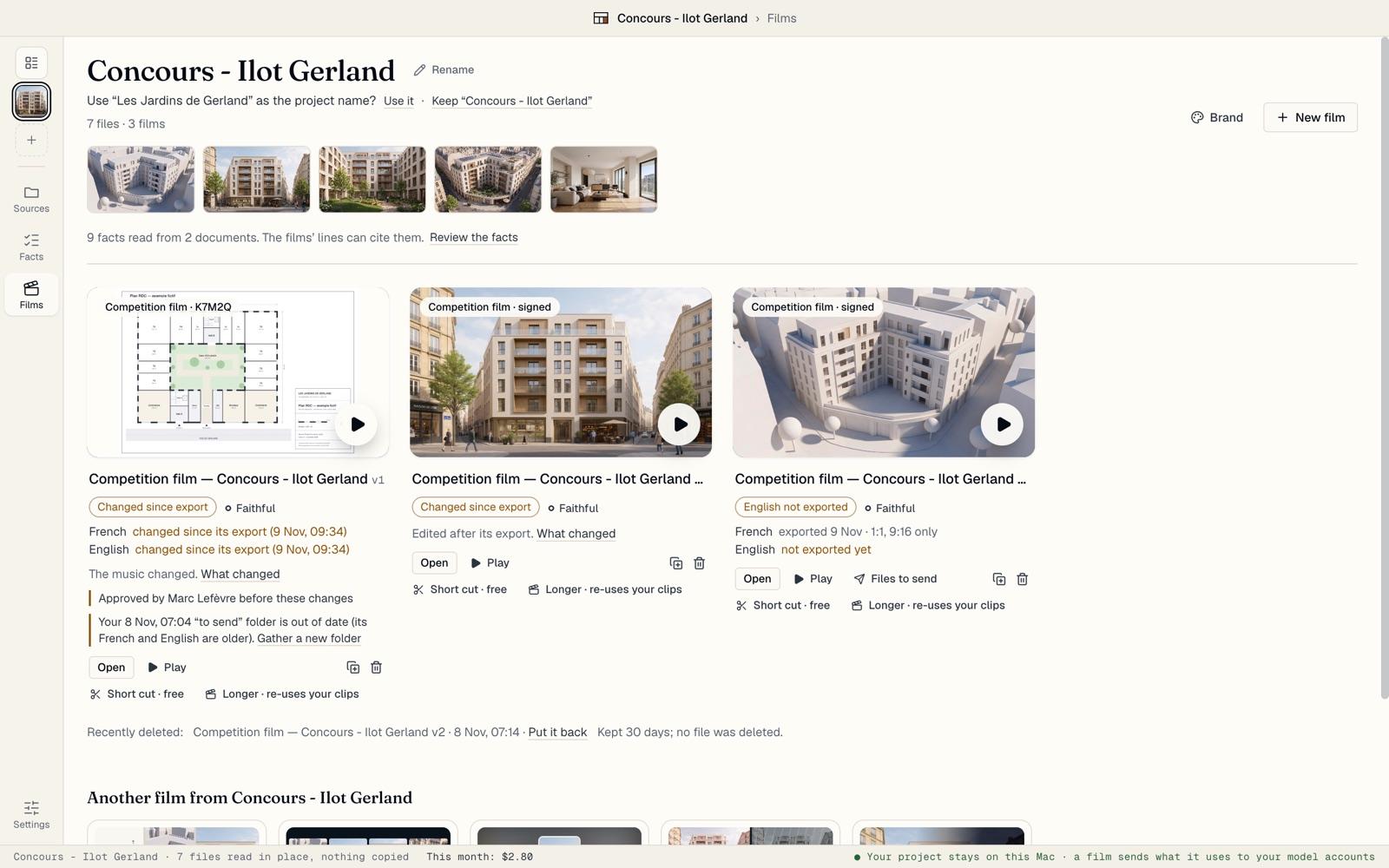
Each film’s card says where each language stands: exported, “changed since its export”, not exported yet, or “draft only” when only a quick draft was made: a review draft never counts as exported. Click What changed for the list, language by language, such as “The music changed” or “Shot 09: a new version of its picture file”.
The card also says when the approval came before the changes, and when a “to send” folder is out of date. Export again to bring the files up to date: it is free.
Tidy up old export folders
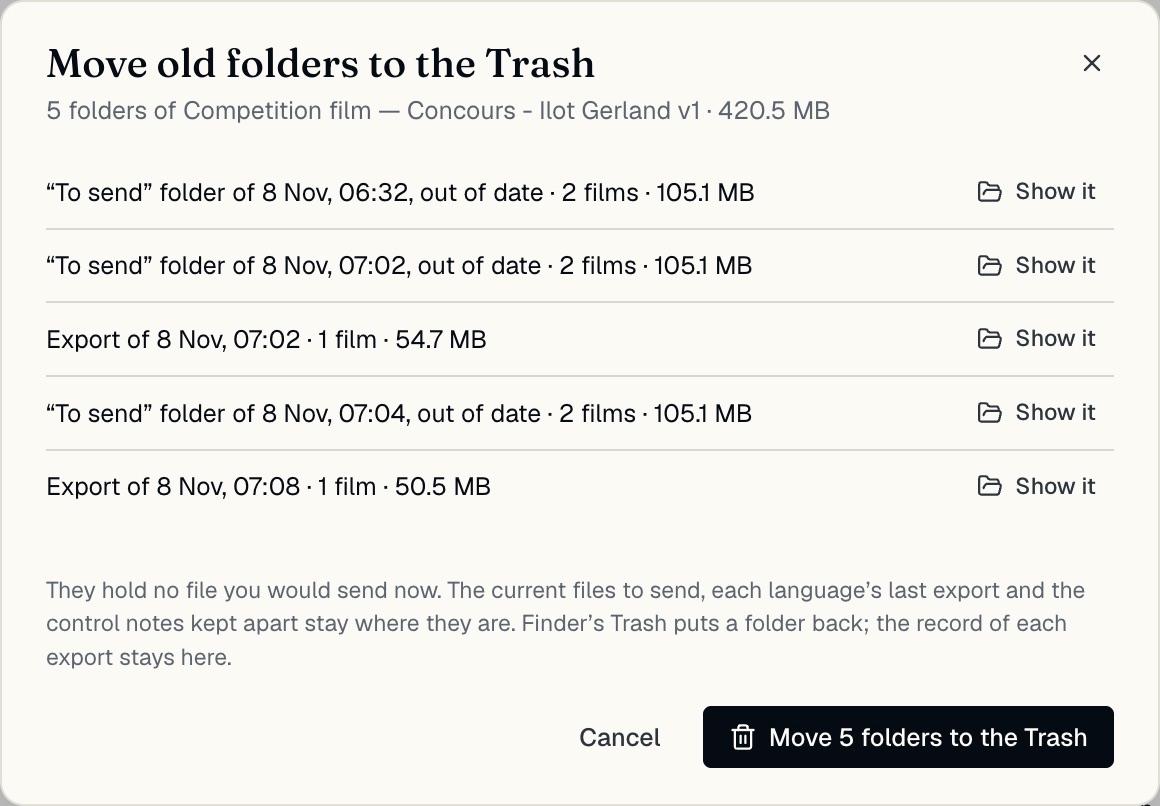
Each export makes a new folder. Under Earlier exports, BrickNote counts the folders that hold no file you would send now, with their size, and offers Review and move to the Trash….
The dialog lists each folder, with Show it. It always keeps the current files to send, each language’s last export and the control notes. Folders go to the macOS Trash, so you can put one back from Finder, and the record of each export stays in BrickNote.