Edit in the studio
Play the film, open a shot to change its picture, look, camera or clip, edit the lines and voices in each language, and undo any edit.
Find your way around
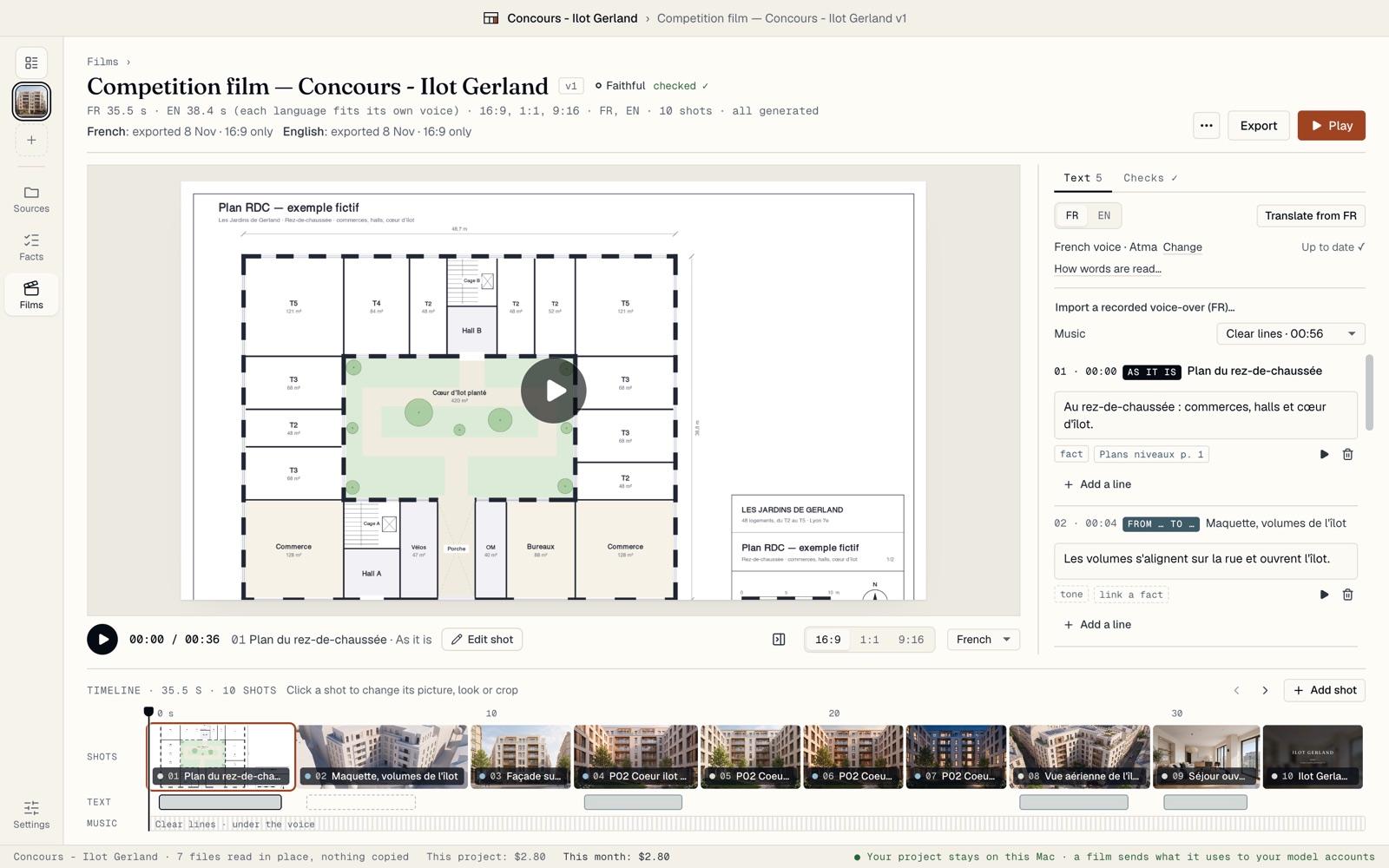
The studio has three parts: the player in the middle; the timeline at the bottom, one block per shot, with the text and music lanes under it; the side panel on the right, with Text and, in a Faithful film, Checks.
The header gives the length in each language, the formats, the languages and whether every shot is made. Under it, a line says where each language’s export stands.
Play the film
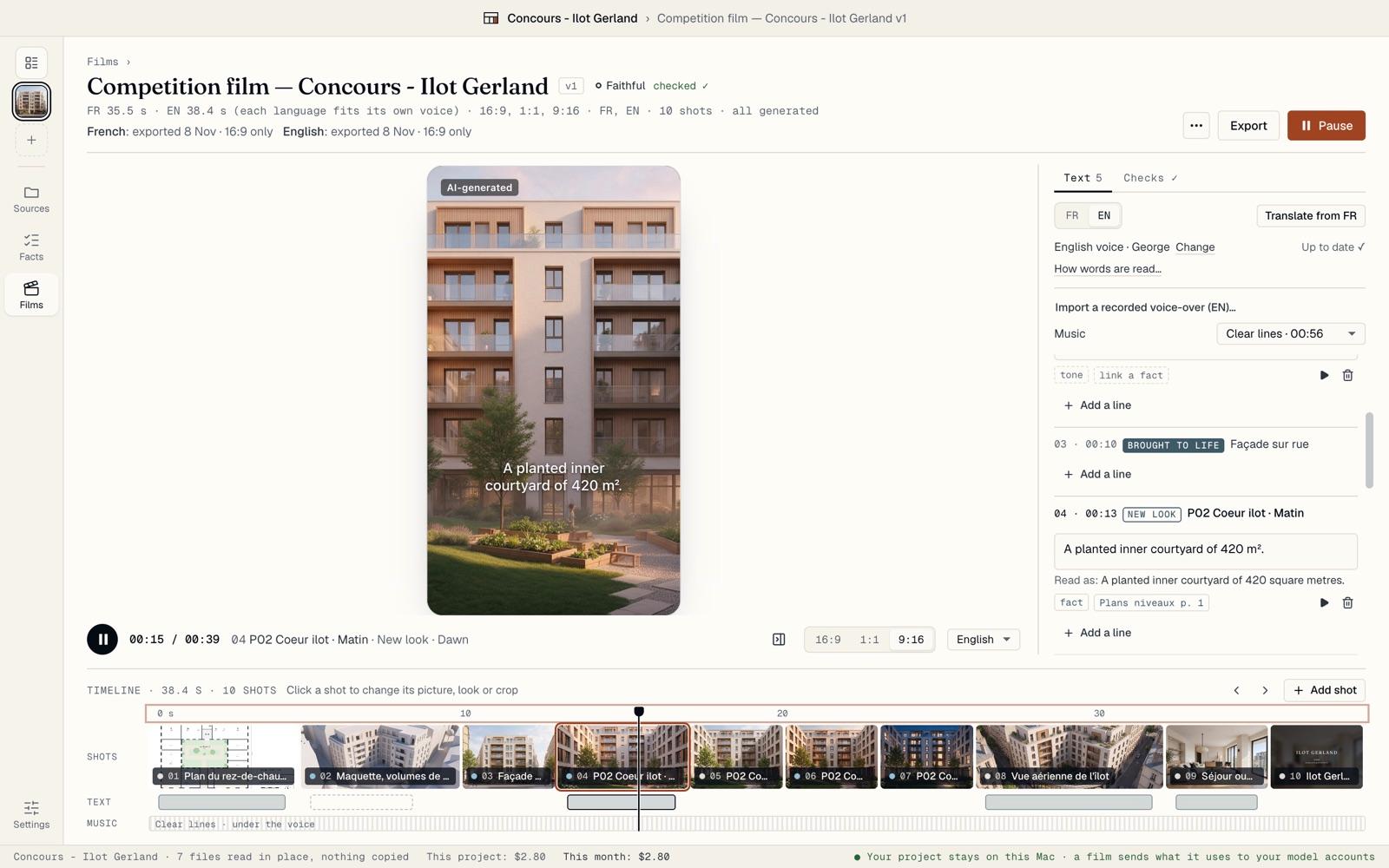
Press the space bar, or click Play. The film plays in the format you choose under the player, 16:9, 1:1 or 9:16, with its captions, voice, music and AI labels, as it will be exported.
Pick the language in the menu beside the formats. Click or drag on the ruler to move the playhead. Nothing is rendered or paid while you watch.
Open a shot
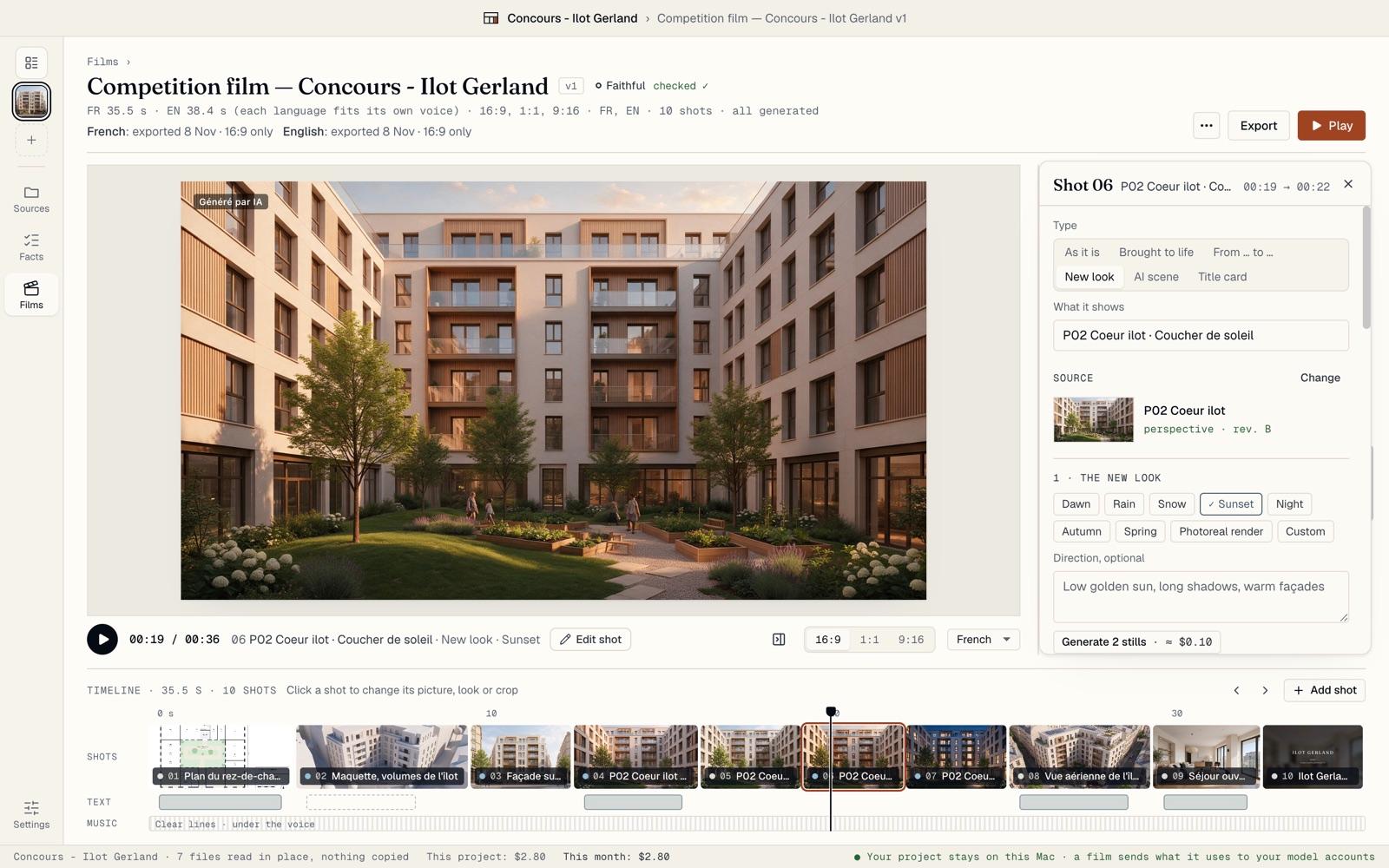
Click a shot on the timeline to open its panel. Type says what the shot does.
As it is: your picture exactly as it is; only the camera moves. Brought to life: your picture comes alive, with people, trees and sky; the building stays as drawn. From … to …: a clip from one of your pictures to another of the same view, such as your massing model turning into the render. New look: your picture in a new light, weather, season or time of day. AI scene: a mood scene made entirely by AI, which never claims to be the real place. Title card: a title, contact or legal lines on screen.
Change, beside the source, picks another picture of the project.
Choose a look and a camera
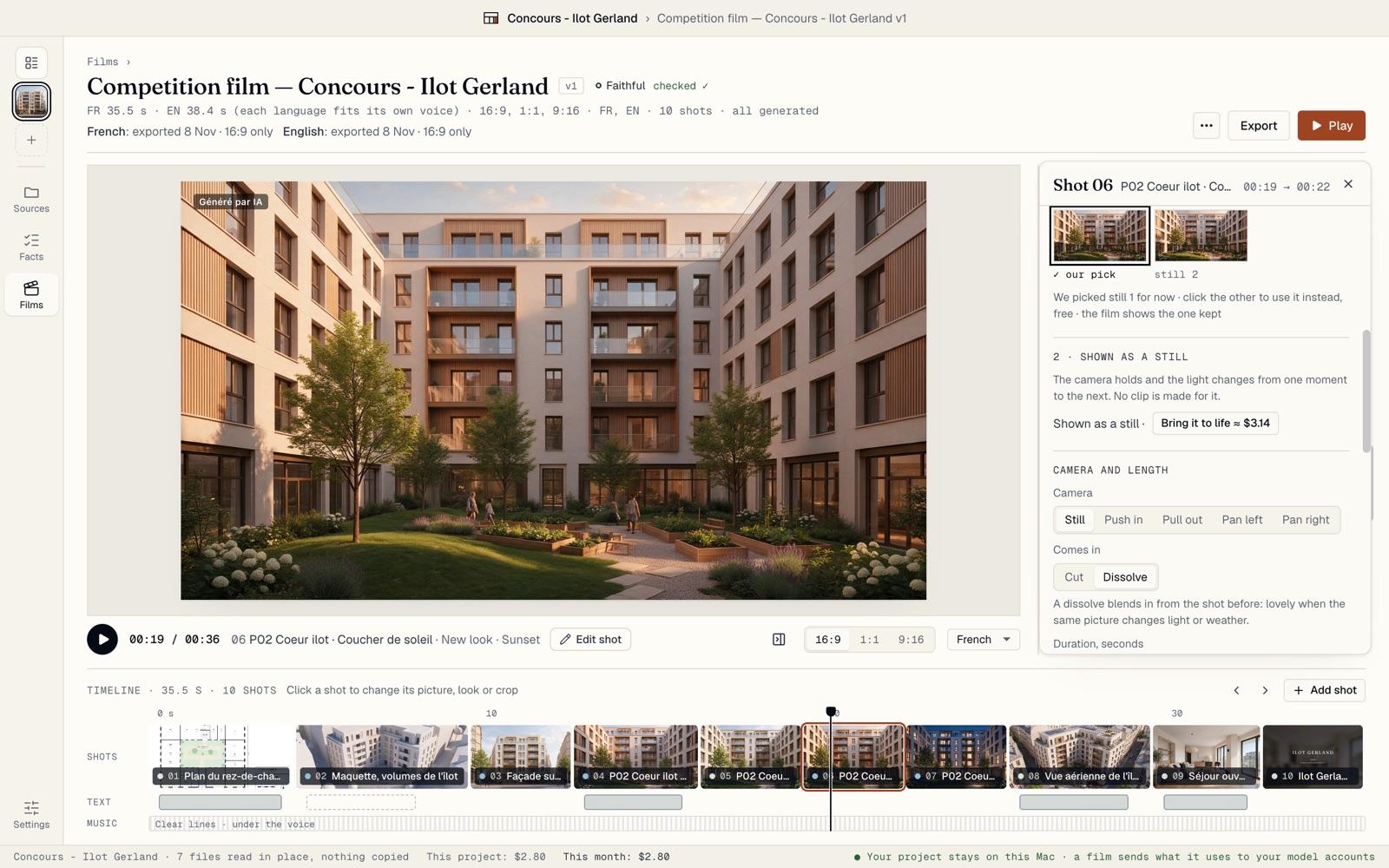
For a new look, pick Dawn, Rain, Snow, Sunset, Night, Autumn, Spring, Photoreal render or Custom, and add a direction if you like. Generate 2 stills makes two pictures to choose from, its price on the button.
BrickNote picks one for now. Click the other to use it instead, for free. A still can stay a still, or Bring it to life makes a clip of it, at the price shown.
Under Camera and length, pick Still, Push in, Pull out, Pan left or Pan right, and how the shot Comes in: Cut or Dissolve.
Make or keep a clip
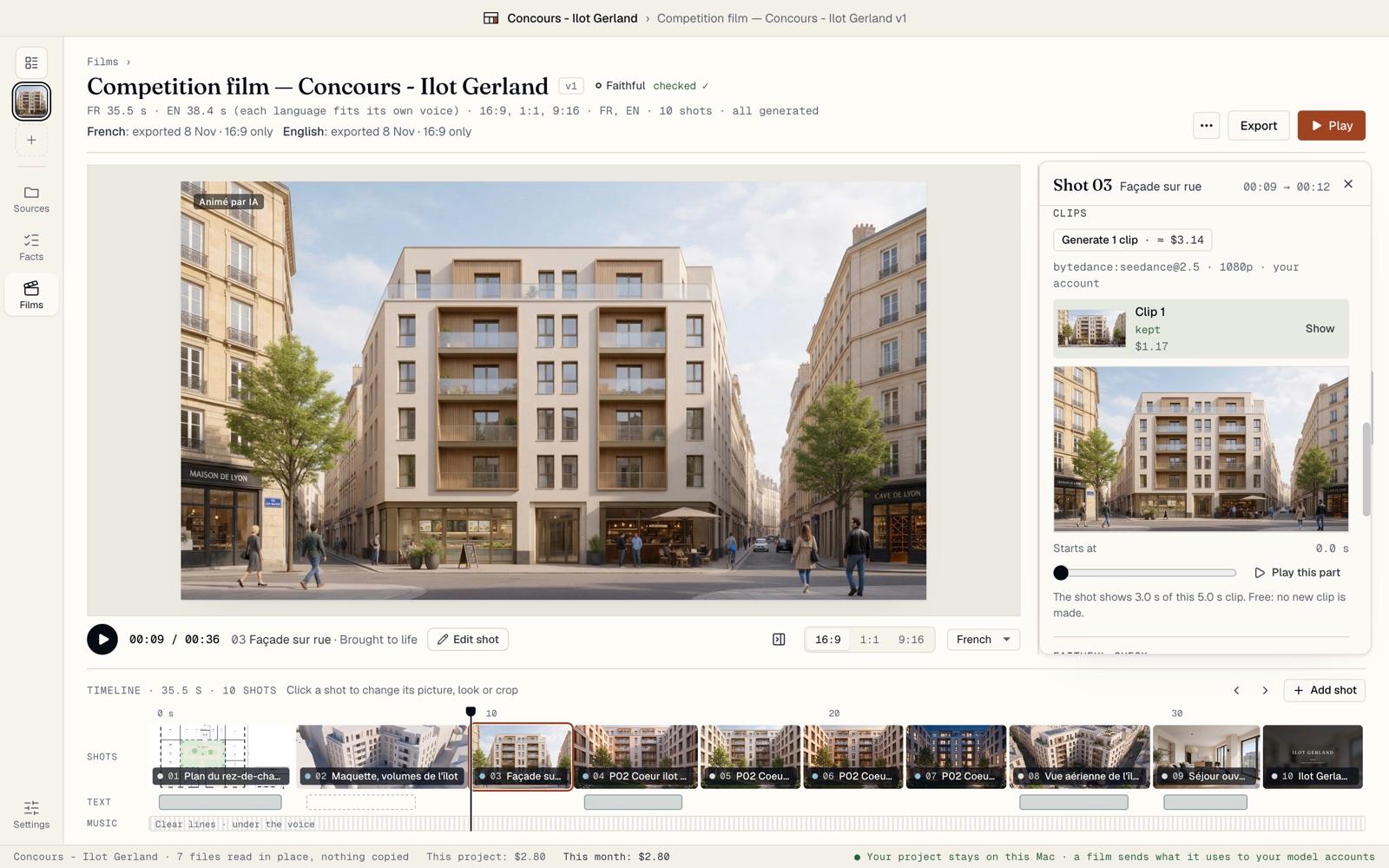
Under Clips, Generate 1 clip makes a new clip of the shot on your video model, its price on the button. Each clip is listed with what it cost, and the one marked kept plays in the film. Click Show to watch it.
When the kept clip is longer than the shot, Starts at picks the moment the shot shows, for free: Play this part plays it, and the film and its exports follow.
Above, set the shot’s length and its framing in each format. Clips are made in 5 or 10 seconds; a longer shot holds its last frame.
In a Faithful film, the shot’s check is shown under its clips.
Edit the lines and voices
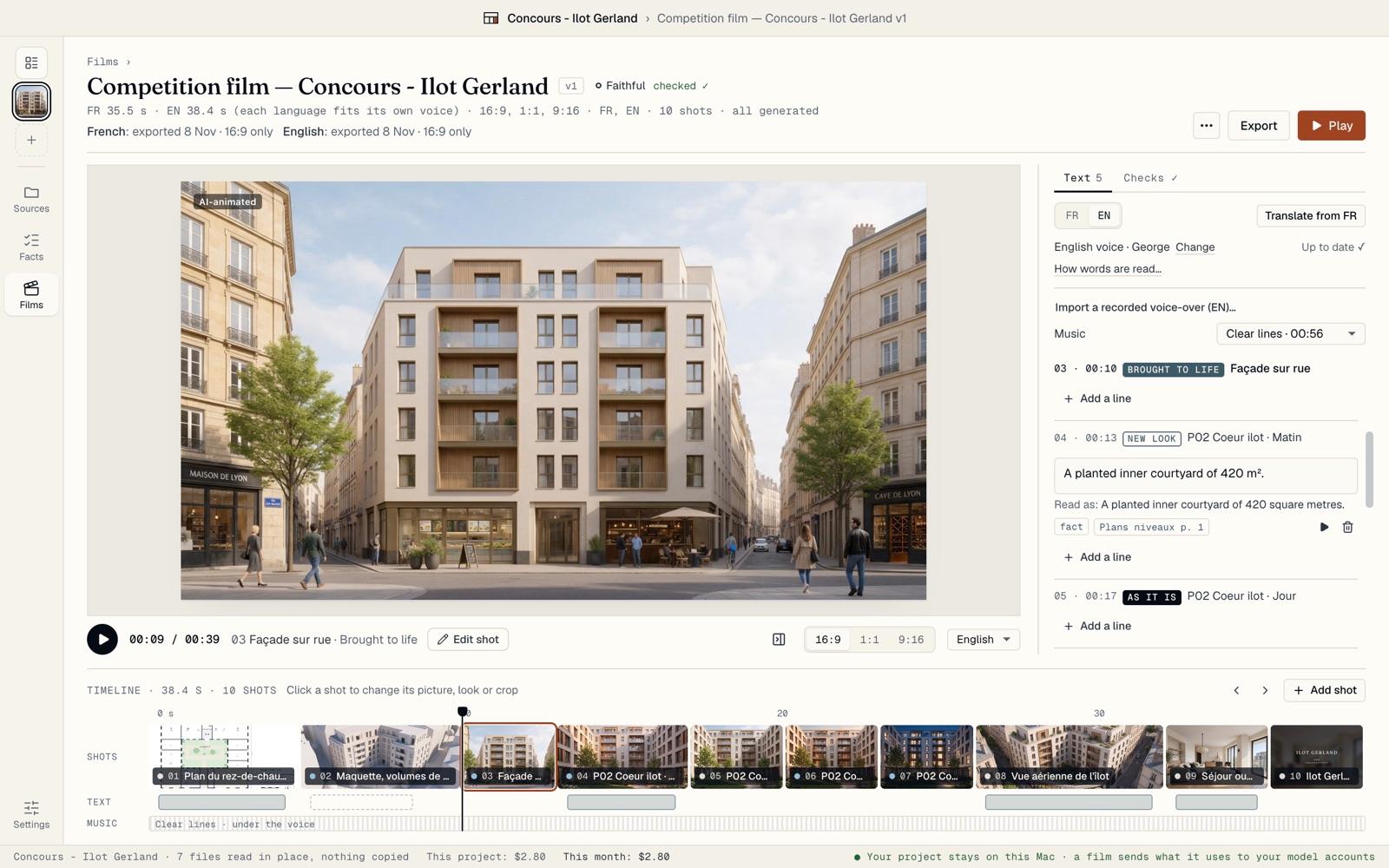
In Text, each shot can carry a line. Click Add a line and type. A fact line says something from your documents and cites it; a tone line sets a mood and claims nothing.
Switch languages at the top. Translate from FR writes the lines of your other languages for a few cents, and you can edit each one. Under a line, Read as shows how the voice will say it, and ▶ plays it for free.
Each language has its own voice: Change picks it. How words are read… fixes a name or a term the voice gets wrong. Import a recorded voice-over (FR)… uses your own recording instead.
Undo, and the ⋯ menu
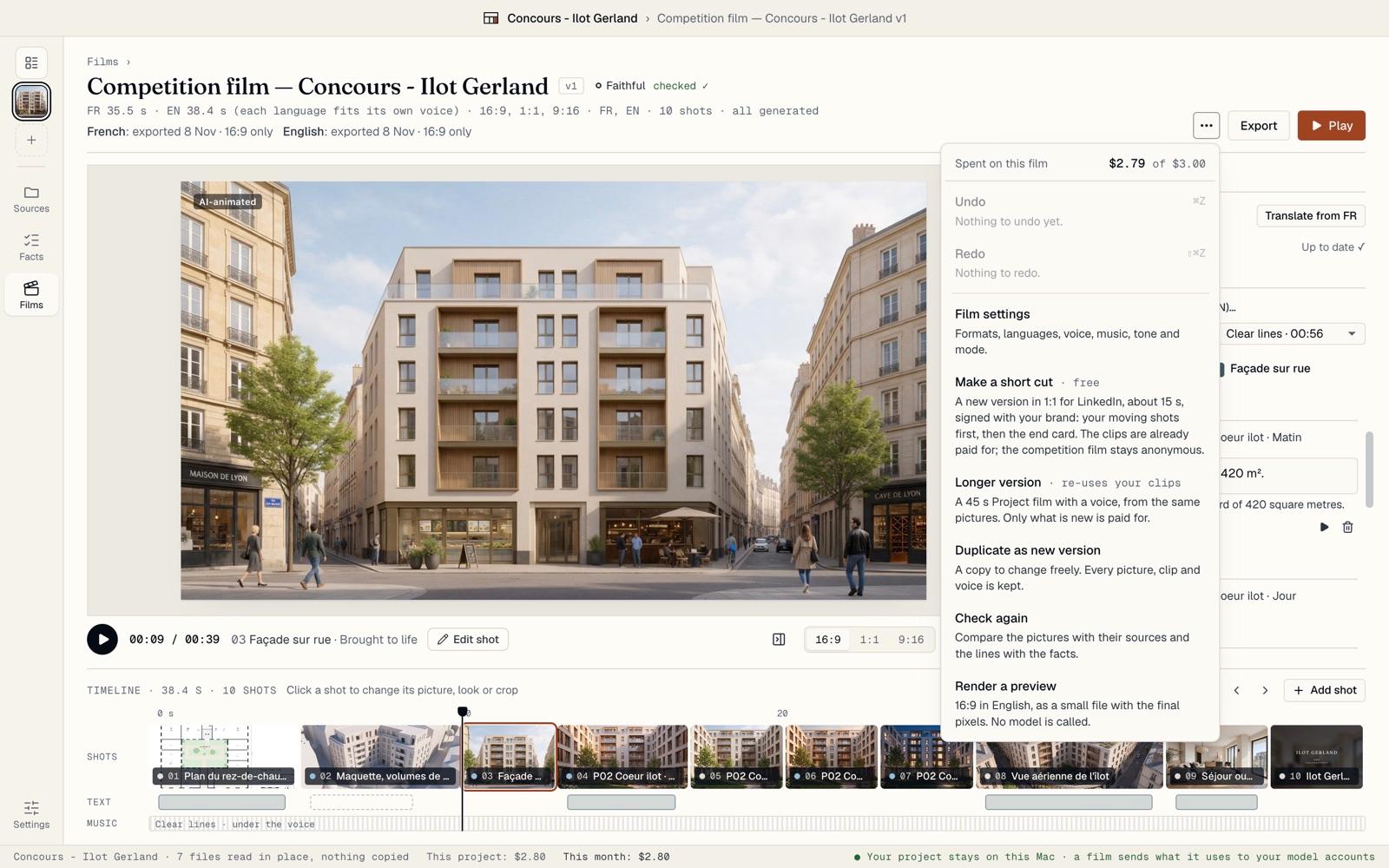
Press ⌘Z to undo an edit and ⇧⌘Z to redo it, or use Undo and Redo in the ⋯ menu. Undo takes back changes to the shots, the lines, the stills and clips kept, and the settings. It never deletes a paid picture, clip or voice, and it lasts until you quit BrickNote.
The same menu shows what this film has cost against its limit. It also has Film settings, Make a short cut (free), Longer version, Duplicate as new version, Check again and Render a preview, a small file with the final pixels.
Change the film’s settings
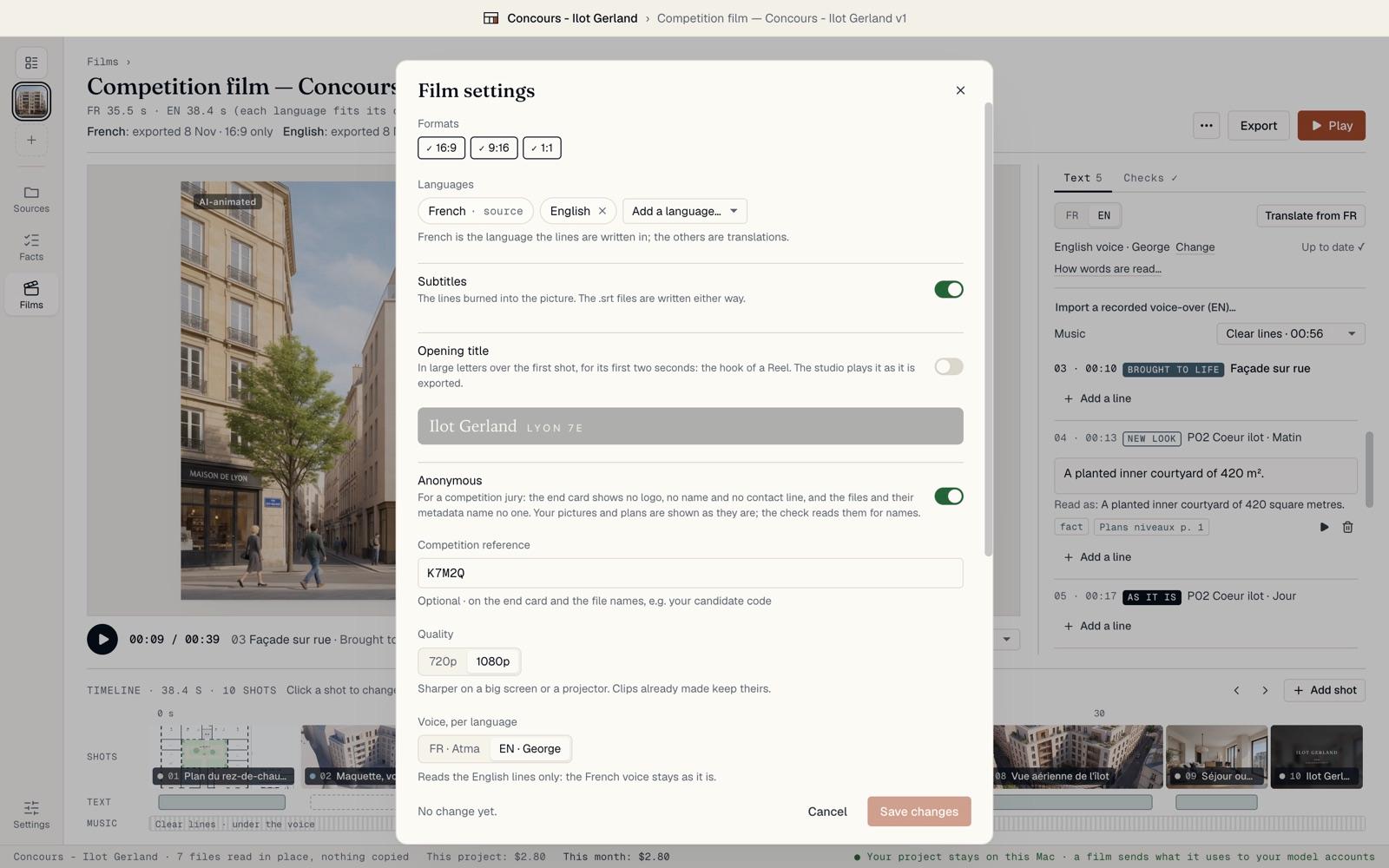
Film settings changes the film after it is made: its formats, its languages, Subtitles, an Opening title over the first shot, Anonymous for a competition, the quality, a voice for each language, the music, the tone and the mode.
Click Save changes. Saving spends nothing. A new language’s lines are translated only when you click Translate from French, or you choose Later.