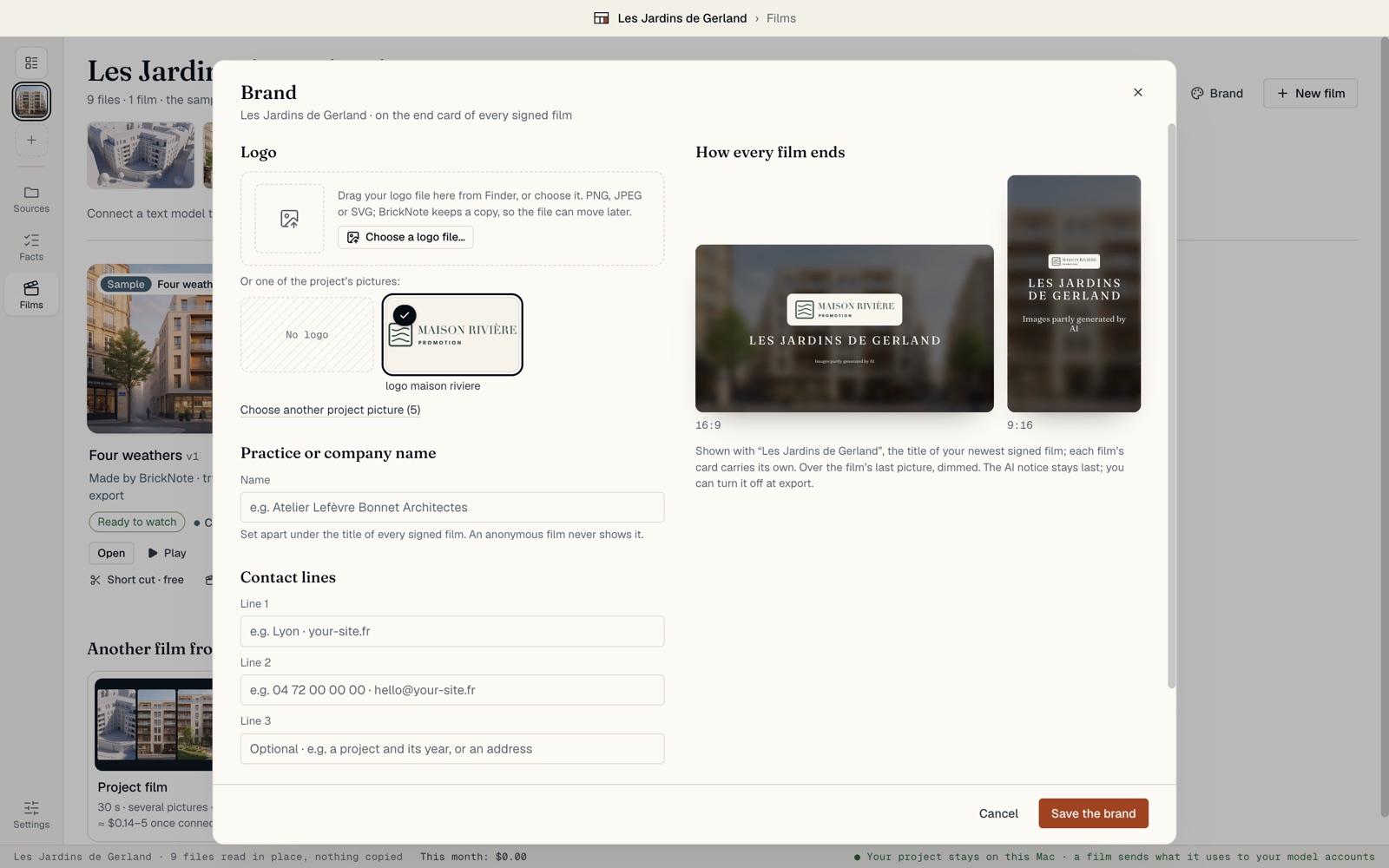
Open your project folder
Bring the folder you already have: renders, model captures, plans, the brochure. BrickNote reads it in place, reads the facts in its documents, and watches it for changes.
Open the folder
On Projects, click Open a project folder and choose your folder. You can also drop the folder anywhere on the window.
BrickNote reads the folder where it is. It copies nothing and changes nothing in it. The only thing it writes there is a BrickNote folder with your exported films.
Each project gets a card with a cover picture, its films and anything that needs a look.
Start from the project page
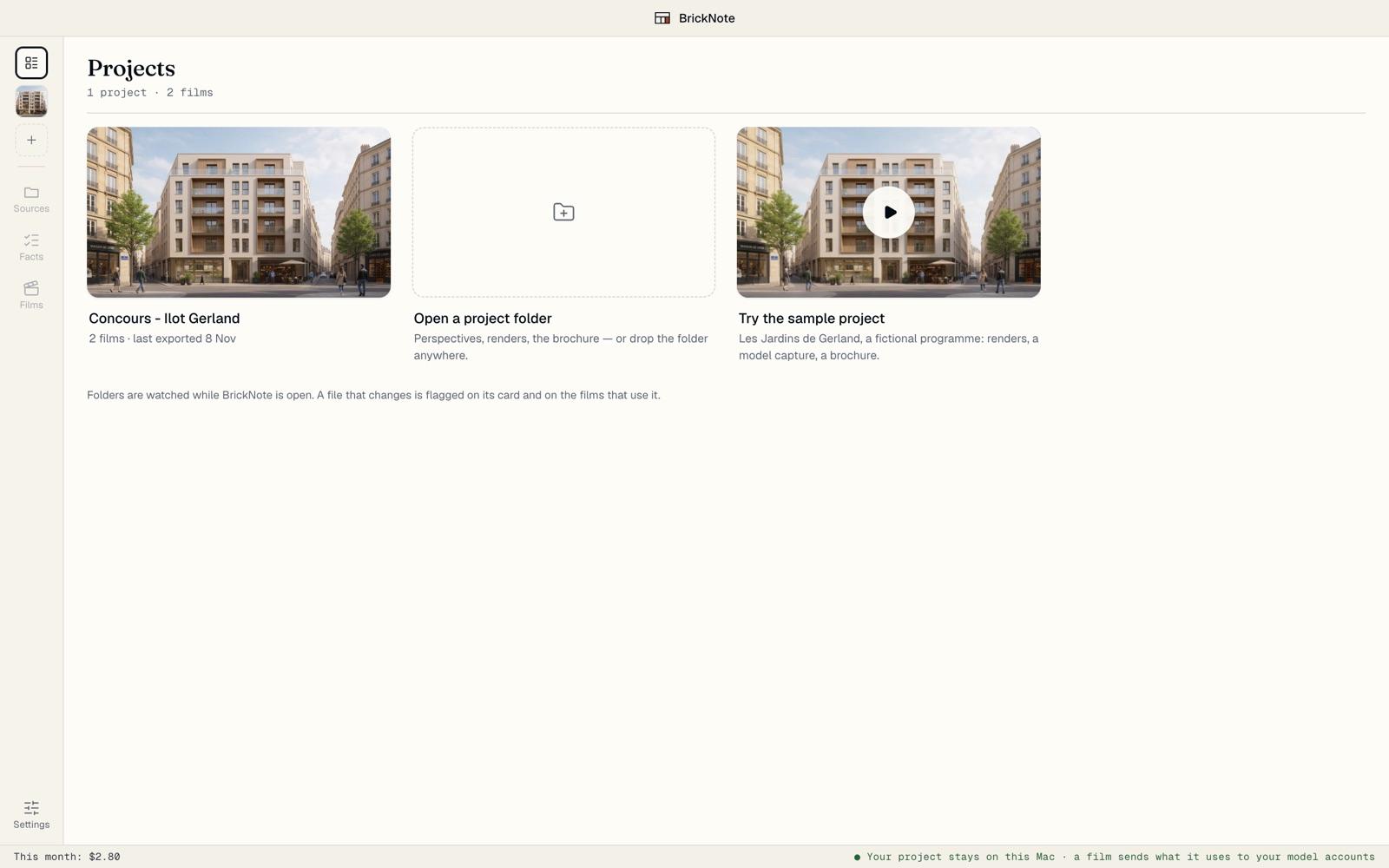
The project opens on its films. The strip shows the pictures BrickNote found, and a line says how many facts it read from your documents.
If the folder’s name is not the programme’s, BrickNote offers the name it read in your documents. Click Use it, or keep yours. Rename changes the name at any time; the folder keeps its own.
Brand and New film are at the top right.
See what BrickNote read
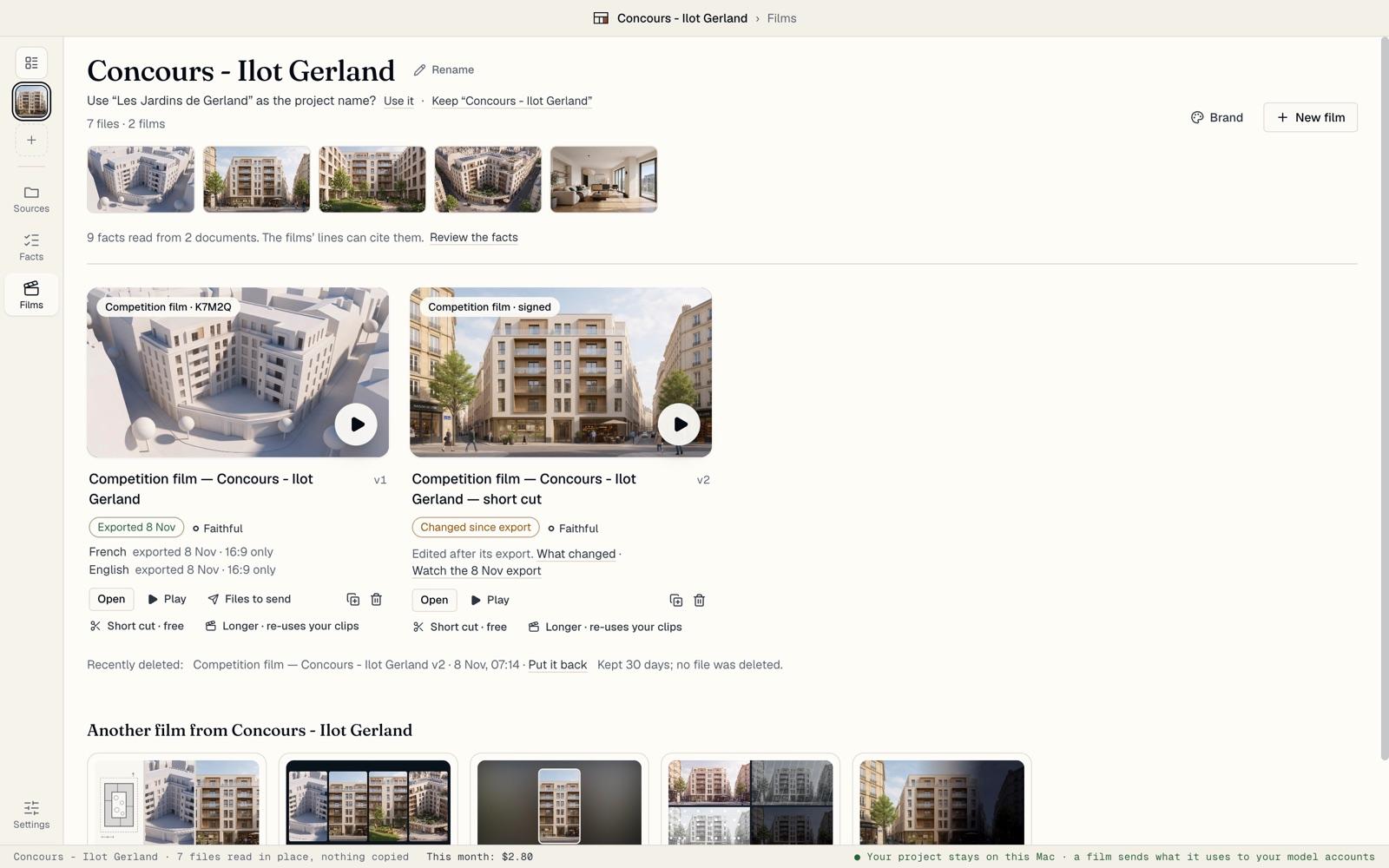
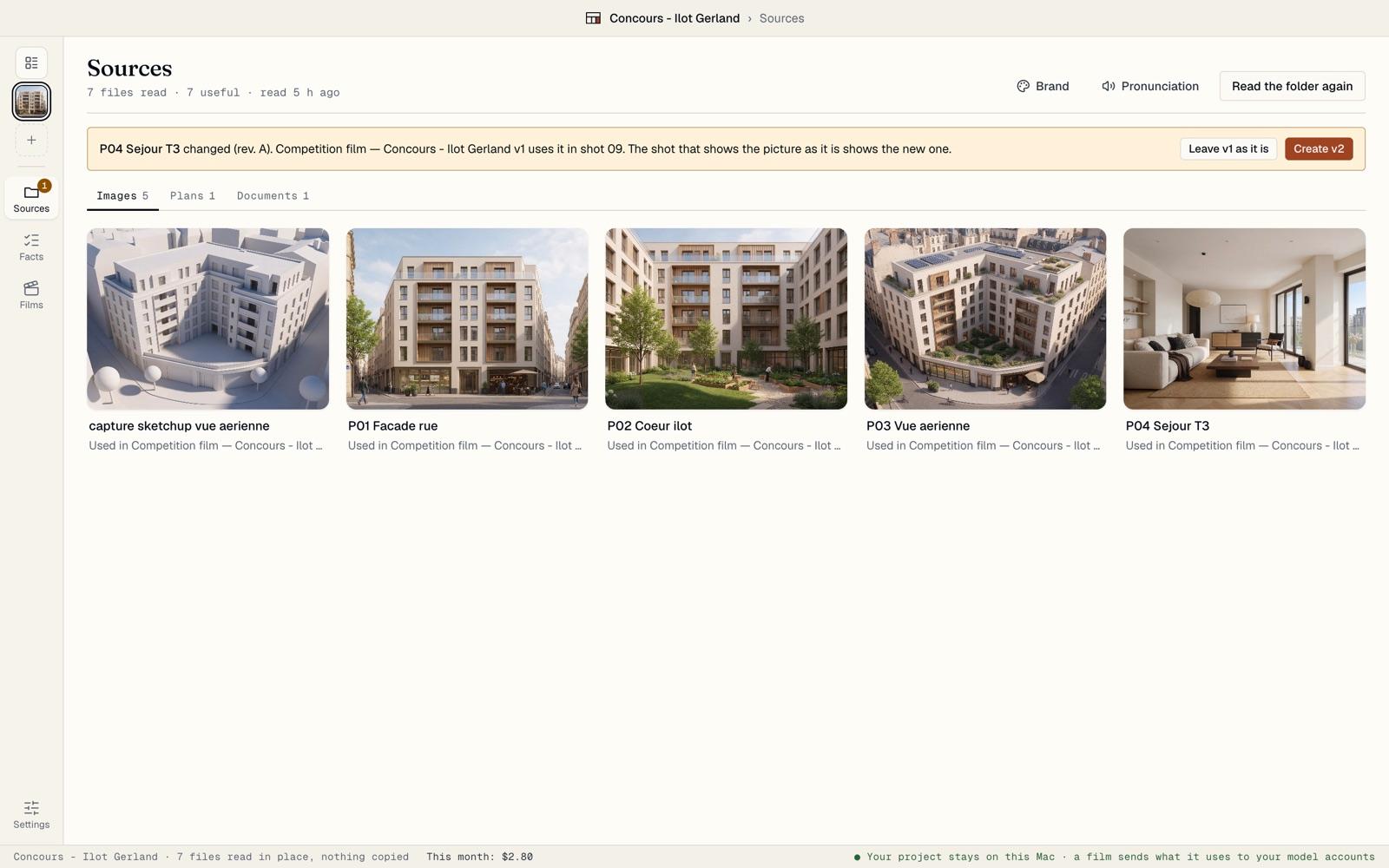
Click Sources in the left bar. The files are sorted by kind: Images, Plans, Documents and Brand. Each picture says which films use it.
Click Details on a file to see its kind, its revision (read from names such as “ind C”), its size and its fingerprint. Change the kind if BrickNote guessed wrong. Turn on Leave out of films to keep a picture out of every shot.
Know what it cannot use
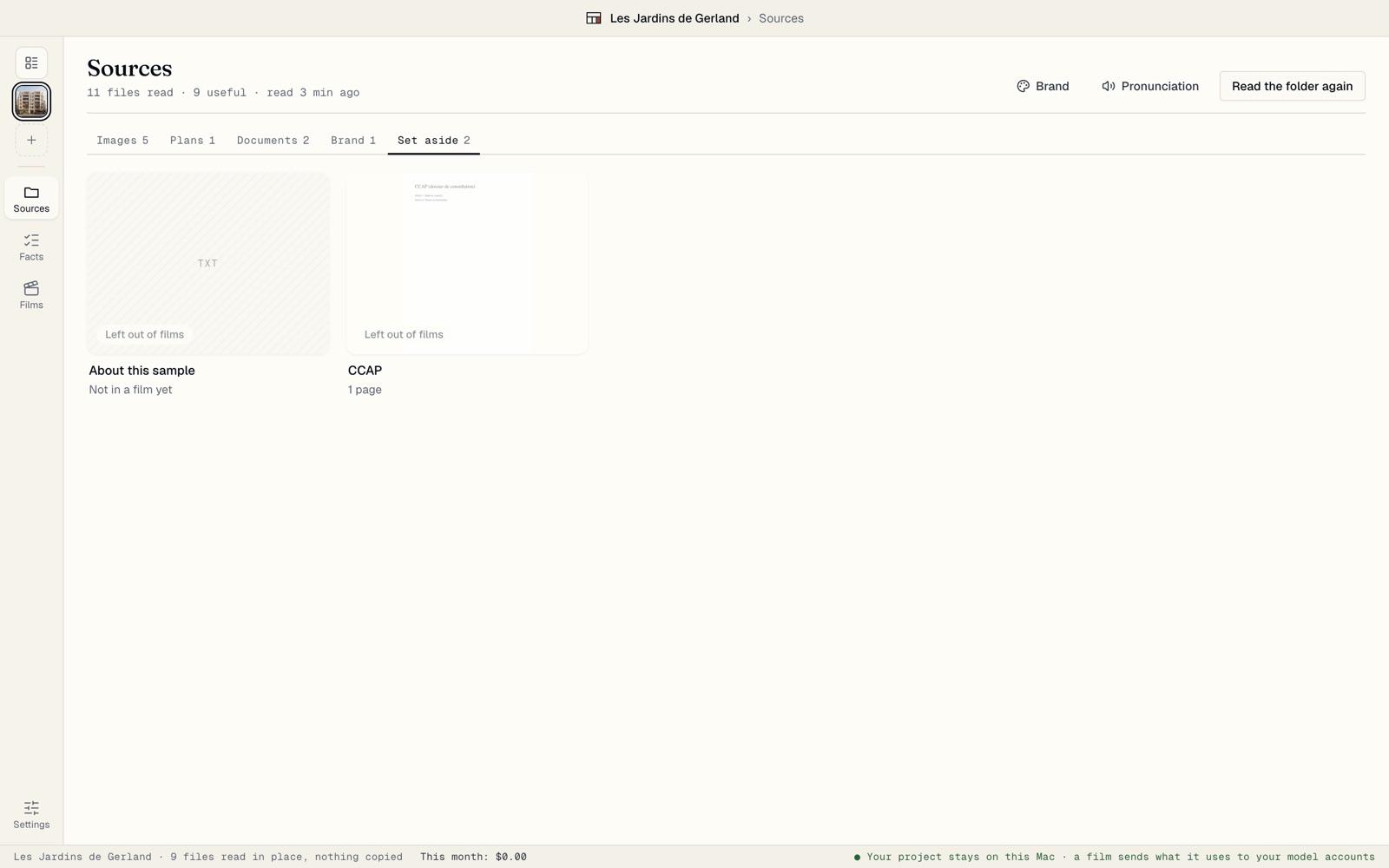
Some files are set aside on purpose, under Set aside: contracts, quotes, invoices, schedules, meeting minutes, and files that are neither a picture nor a PDF. They stay in the list and are never used in a film.
A file BrickNote cannot read at all, such as a broken image or a file your drive has not downloaded yet, is listed at the bottom under “files could not be read”, with the reason. iPhone photos (HEIC) are converted for you.
Check the facts it read
With a text model connected, BrickNote reads your PDFs in the background as soon as the folder opens: the brochure, the specification, the permit notice. It says what the reading costs as it starts, usually a few cents, and nothing waits for it.
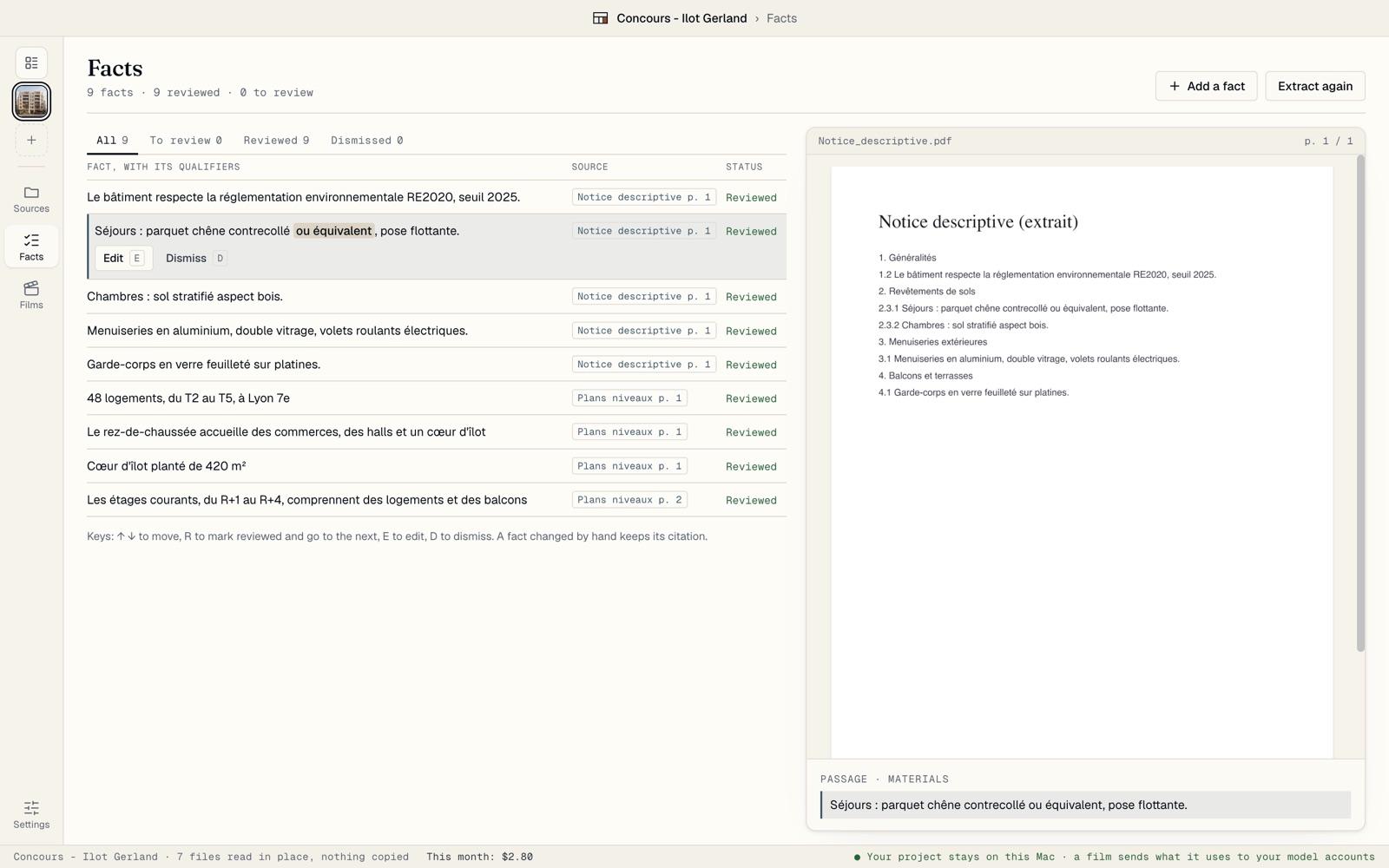
Open Facts. Each fact shows the page it comes from, with the passage highlighted beside it. BrickNote keeps a fact only when it finds that passage on the page it cites. Words such as “or equivalent” or “provisional” stay with the fact, highlighted.
Press R to mark a fact reviewed, E to edit it, D to dismiss it. Add a fact adds one the reading missed: choose the document and the page, paste the passage as the page writes it, and BrickNote finds it there before it keeps the fact.
In a Faithful film, these facts are the only source of factual lines. When a document changes, its facts go back to To review, and every line that cites them asks to be checked again. A document you leave out of films in Sources stops being a source: the facts that rest on it alone go back to To review too.
Let it watch the folder
While BrickNote is open, it watches the folder. Add, replace or remove a file, and it reads the folder again by itself. Read the folder again does it on demand. To retire an old version of a document, turn on Leave out of films for it in Sources: it stops being a source, and its facts go back to review.
When a picture that a film uses changes, BrickNote says so on Sources and on the film: “P04 Sejour T3 changed (rev. A)… uses it in shot 09.” Click Leave v1 as it is to keep the film's AI shots as they were made from the earlier file (a shot that shows the picture as it is shows the new one), or Create v2 to make a new version with the new picture. BrickNote remembers your answer until that file changes again. When shots must be made again, the button says how many and what it costs.
Add your brand
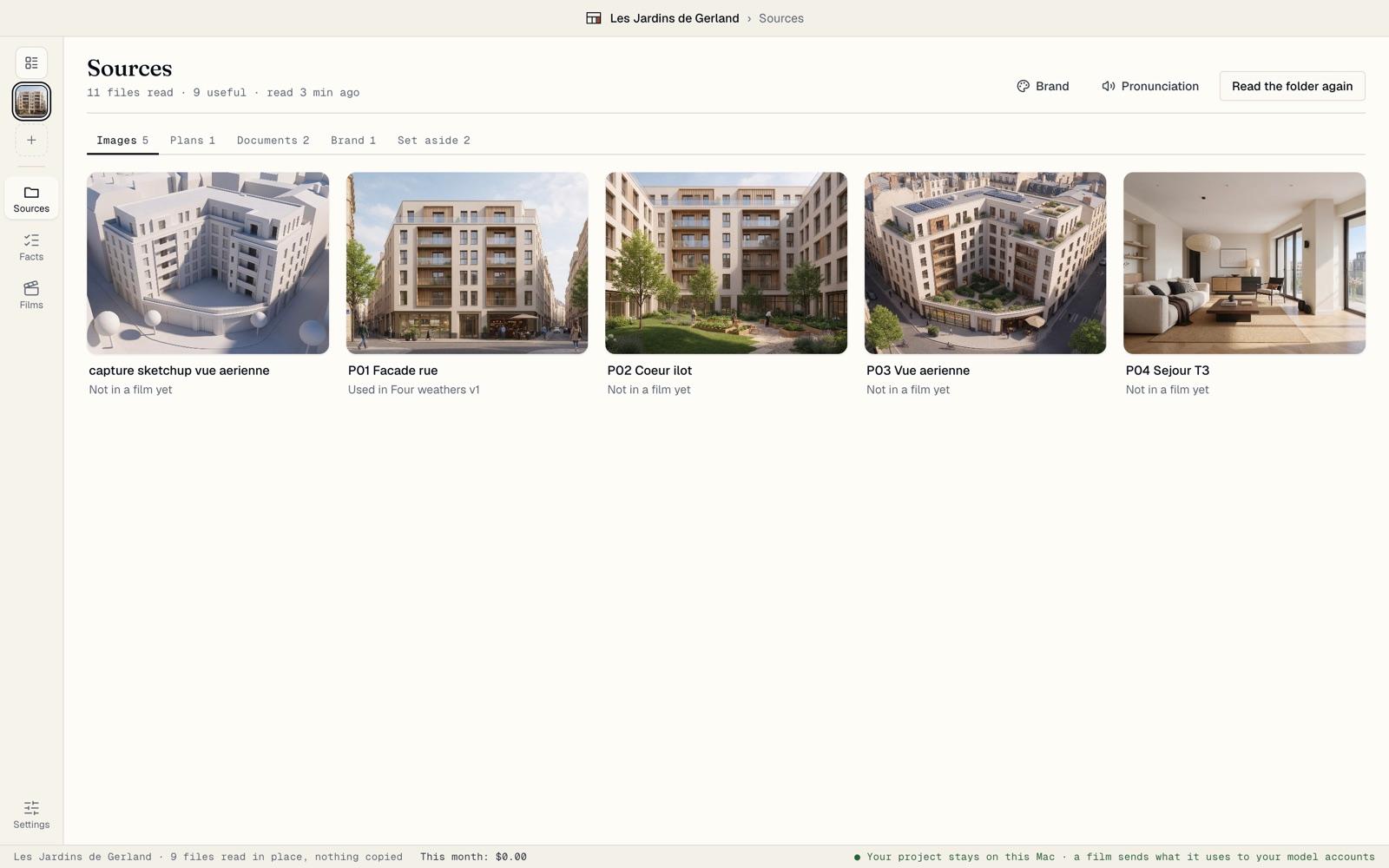
Click Brand on the project page or on Sources. If another project already has your brand, click Use its brand at the top, after Copy the brand of another project… if this project already has one: that project’s logo, name, contact lines and colour fill the fields, and you can still change them before you save.
Add your logo: drag your logo file in (PNG, JPEG or SVG), or pick one of the project’s pictures that looks like a logo; the others are behind Choose another project picture (Choose a project picture when none looks like a logo). Then your practice or company name, up to three contact lines, such as your website and phone number, and a colour.
The preview shows how your signed films end: the title, your logo and your lines over the film’s last picture, dimmed, then “Images partly generated by AI”. Click Save the brand. A competition film stays anonymous: its end card shows none of this.